
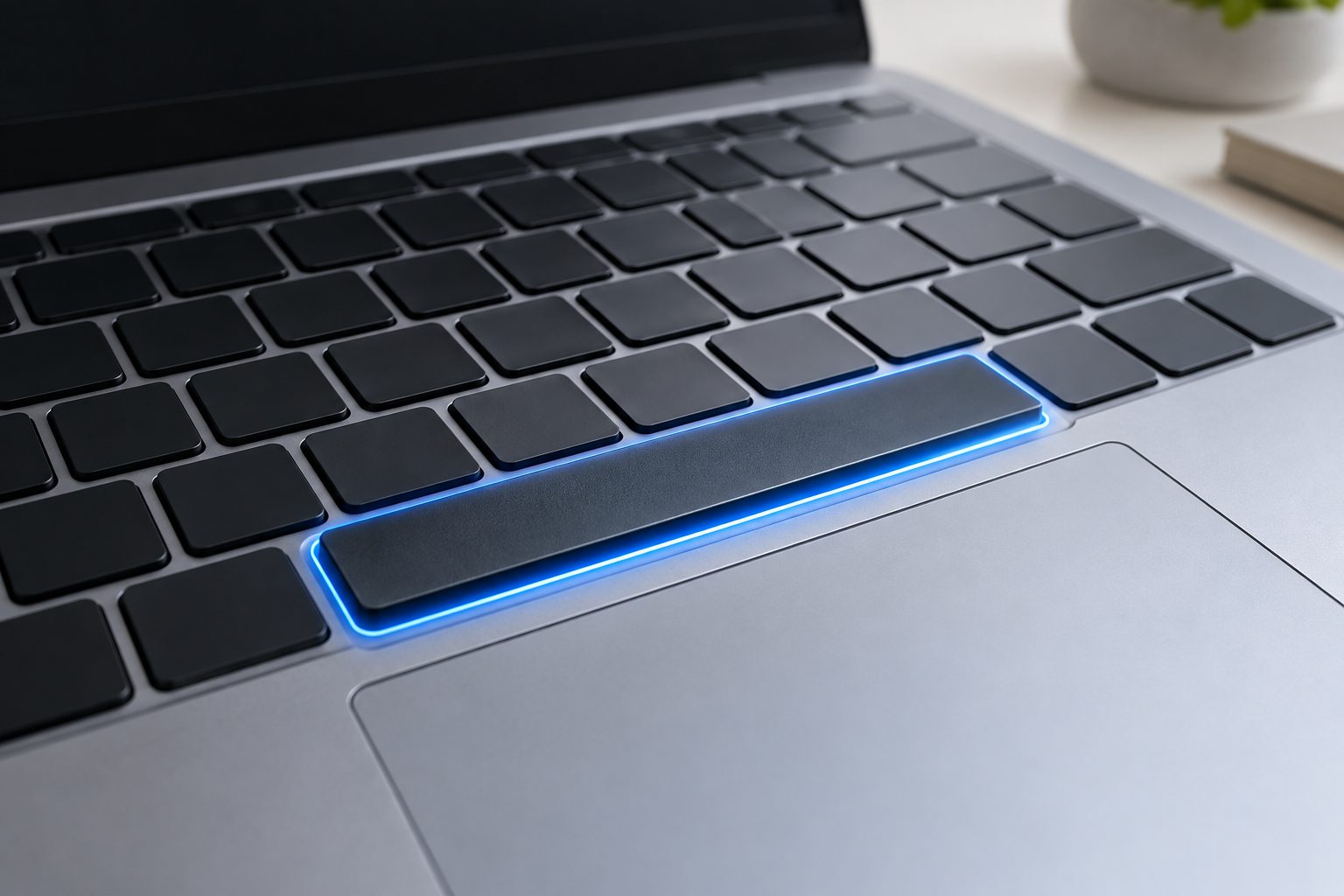
If your Mac spacebar feels hard to press, stiff, uneven, or slower than the other keys, the problem is usually caused by dust, crumbs, a misaligned key mechanism, liquid residue, or physical wear. Because the spacebar is wider than most keys, it uses stabilizer parts that can make even a small obstruction noticeable. The good news is that many cases can be diagnosed and resolved without replacing the entire keyboard. This guide explains why your Mac spacebar may be difficult to press, how to identify the cause, what cleaning methods are safe, which repair mistakes to avoid, and when professional service is the better option. You will also learn how to test the key, protect your Mac keyboard, and decide whether the problem is mechanical, software-related, or connected to the keyboard surface itself.
Why Your Mac Spacebar Feels Hard To Press
A spacebar that requires extra force usually has a physical problem, although software issues can sometimes make typing feel abnormal. Start by paying attention to how the key behaves. Does it feel stiff everywhere, or only on one side? Does it press down but fail to register? Does it make a scraping or clicking sound? These details can quickly narrow down the cause.
1. Dust And Crumbs Under The Key
Small particles can collect beneath the spacebar and interfere with the scissor mechanism or stabilizer bars. Since the spacebar is large, it creates a broad area where debris can enter. A crumb may prevent the key from traveling evenly, making one side feel higher, harder, or less responsive than the other.
2. Misaligned Stabilizer Mechanism
Mac spacebars commonly use stabilizer components to keep the wide key level. If one stabilizer clip becomes loose or shifts out of position, the bar may press unevenly. You may notice that the left side works normally while the right side feels stuck, or that the key tilts slightly when pressed.
3. Liquid Or Sticky Residue
A small amount of spilled coffee, soda, juice, or even hand lotion can leave a sticky film under the key. This residue creates friction and may become worse over time as dust attaches to it. Sticky keys often feel slow when returning upward rather than simply requiring force during the initial press.
4. Worn Keyboard Components
Frequent typing, gaming, or heavy use can gradually wear the keycap clips, scissor mechanism, or stabilizer mounts. Older MacBook keyboards may develop uneven key travel after years of use. If cleaning does not improve the feel and the key has been used heavily, normal mechanical wear may be responsible.
5. Damage From Previous Cleaning
The spacebar can become difficult to press if it was removed incorrectly or reattached with one clip outside its proper position. Excessive force, sharp tools, or lifting the key from the wrong angle can damage delicate plastic parts. A problem that began immediately after cleaning deserves special attention.
How To Tell What Is Causing The Problem
Before attempting a repair, test the key carefully. A few simple observations can prevent unnecessary damage and help you decide whether cleaning is appropriate. Do not immediately pry off the spacebar just because it feels stiff. Wide keys are more difficult to reinstall than small letter keys.
1. Test Both Sides Of The Spacebar
Press the left, center, and right portions separately. If all areas feel equally stiff, the issue may be general debris, residue, or a damaged mechanism underneath. If only one area feels difficult, a stabilizer or alignment problem is more likely. Uneven resistance is especially important because it suggests a mechanical imbalance.
2. Listen For Unusual Sounds
A healthy spacebar usually produces a consistent, controlled sound. Scraping, crunching, squeaking, or repeated clicking may indicate debris or a displaced stabilizer. A sharp snap can suggest that a plastic clip has cracked. Avoid repeatedly pressing a noisy key because additional force can worsen the damage.
3. Check Whether The Key Returns Normally
Press the spacebar once and observe how quickly it rises. If it stays low, returns slowly, or remains partially depressed, sticky residue or a damaged spring mechanism may be involved. A key that returns normally but feels heavy may instead have dirt restricting its downward movement.
4. Compare The Key With Another Keyboard
If you have access to an external keyboard, compare the typing experience. This can help determine whether the issue belongs to the MacBook keyboard or to a software setting. If the external spacebar works normally, the built-in key is probably experiencing a physical problem.
5. Test In Multiple Applications
Open a text editor and a web browser, then type several sentences. If the key physically feels normal but spaces are missing, the issue may involve registration, accessibility settings, or a software fault. If it is physically hard to press in every application, focus on the hardware rather than the operating system.
6. Look For Visible Gaps Or Tilt
Examine the spacebar from the front and sides. A raised corner, uneven gap, or tilted keycap often points to a loose clip or stabilizer. Do not press down aggressively to force it into place. The visible position may provide enough information to choose a safer next step.
Safe Ways To Clean A Hard Mac Spacebar
Cleaning is often the first practical solution, but the method matters. MacBook keyboards contain delicate mechanisms, and moisture or compressed air used incorrectly can create a larger problem. Work slowly, shut the Mac down, disconnect accessories, and keep liquids away from the keyboard.
1. Turn Off The Mac Completely
Shut down the Mac rather than leaving it asleep. This prevents accidental commands while you are pressing keys and reduces the risk of electrical problems if moisture is present. Disconnect the charger and any external devices before cleaning around the spacebar.
2. Hold The Mac At A Safe Angle
Position the Mac so the keyboard is slightly angled, allowing loose particles to move outward instead of deeper into the mechanism. Do not shake the computer forcefully. Gentle positioning is enough to expose surface debris and make cleaning more controlled.
3. Use A Soft, Dry Brush
A clean, soft-bristled brush can loosen dust around the edges of the spacebar. Move lightly along the front, back, and sides. Avoid pushing the brush underneath the key with force. This method is useful when the key feels rough but there is no evidence of liquid residue.
4. Use Short Bursts Of Air Carefully
If using compressed air, follow the manufacturer’s safety guidance and use short bursts from an appropriate angle. Keep the can upright and avoid spraying continuously. Long blasts or incorrect angles can drive debris deeper into the keyboard or introduce unwanted moisture.
5. Wipe The Surface With A Dry Cloth
A lint-free cloth can remove skin oils and residue from the top and front edge of the key. The cloth should be dry or only barely damp if the device manufacturer’s care instructions allow it. Never pour cleaner directly onto the keyboard.
6. Test The Key After Cleaning
Turn the Mac back on and test the spacebar in a text editor. Check whether the resistance, sound, and return movement have improved. If the key remains hard to press, stop escalating the cleaning process. Repeated attempts may damage the mechanism without solving the underlying issue.
Why Removing The Spacebar Can Be Risky
Many people search for a quick way to remove a Mac spacebar, but this is one of the keys that deserves caution. Its width means it often includes multiple clips and stabilizer parts. Removing it can make a minor debris problem worse if the keycap or mounting points are damaged.
1. The Key Uses More Than One Support Point
Unlike a small letter key, the spacebar must remain level across its entire width. It may connect to stabilizer bars and several clips. If even one part is disconnected or bent, the key may not sit correctly after reinstallation.
2. Different Mac Models Use Different Mechanisms
MacBook keyboard designs have changed across generations. A mechanism used in one model may not match another model, even if the keys look similar. Advice that works for an older MacBook can damage a newer one, so model-specific information is important before disassembly.
3. Plastic Clips Can Break Easily
The clips beneath a spacebar are small and often made from thin plastic. A metal screwdriver or fingernail can apply too much pressure in the wrong place. Once a clip breaks, cleaning alone will not restore the original key feel.
4. Stabilizer Bars Can Come Loose
The stabilizer bar helps the spacebar move evenly. If it slips out of its retainers, the key may become crooked or fail to press on one side. Reinstalling the bar without understanding its path can create binding and additional resistance.
5. Warranty And Service Considerations Matter
If your Mac is covered by a warranty, service plan, or consumer protection period, self-repair may complicate support. Document the symptoms and check available service options before opening the keyboard. This is especially sensible when the problem began after a spill or impact.
6. Professional Disassembly May Be More Efficient
A trained technician can inspect the key mechanism, keyboard assembly, and signs of liquid damage with the right tools. Professional service may be preferable when the spacebar is physically damaged, several keys are affected, or cleaning has not helped.
How To Fix A Mac Spacebar That Is Sticking
A sticky spacebar needs a different approach from a key that simply feels firm. The goal is to identify whether the stickiness is on the surface or beneath the key. Surface residue can sometimes be removed gently, while internal contamination may require service.
1. Remove Surface Oils First
Use a clean, lint-free cloth to wipe the top and front edge of the key. Repeated typing can transfer oils and lotion to the keyboard. Removing this film may improve the feel if the problem is limited to the keycap surface.
2. Avoid Household Cleaning Sprays
Glass cleaner, disinfectant spray, alcohol-heavy products, and general-purpose cleaners can damage coatings or seep beneath the key. Even when a product is safe for a countertop, it may not be safe for a Mac keyboard. Apply nothing directly unless it is specifically suitable for the device.
3. Check For A Recent Spill
Think back to when the problem began. If the spacebar became sticky after a drink was nearby, assume that liquid may have entered the mechanism. Do not continue pressing the key repeatedly, because movement can spread residue to nearby components.
4. Watch For Nearby Key Problems
Liquid damage rarely affects only one location permanently. Check the Command, Option, Control, and letter keys near the spacebar. If several keys feel sticky or fail to register, professional inspection is more appropriate than treating the spacebar in isolation.
5. Give A Damp Device Time To Dry Safely
If a recent spill occurred, shut down the Mac and disconnect power. Keep it in a safe, ventilated position and avoid using heat, hair dryers, or rice. Heat can damage components, while powders and particles can enter openings. A technician can assess internal moisture more reliably.
6. Treat Persistent Sticking As A Hardware Issue
If the spacebar remains sticky after careful surface cleaning, the residue may be underneath the keycap or within the keyboard assembly. At that stage, more force is unlikely to help. Arrange an inspection rather than repeatedly pressing or prying at the key.
Steps To Troubleshoot A Spacebar That Does Not Register
Sometimes users describe a key as hard to press when the real problem is that it does not register consistently. This can lead to repeated, harder presses that accelerate mechanical wear. Test the input separately from the physical feel.
1. Open A Basic Text Editor
Use a simple application with no special shortcuts or formatting rules. Type a sentence and press the spacebar at different points. This helps reveal whether spaces are missing, delayed, or duplicated.
2. Try Holding The Key Briefly
Press and hold the spacebar for a moment, then release it. If the key registers only after extra pressure or at a particular angle, the mechanism may be failing. Do not use this as a permanent typing technique because it can increase stress on the key.
3. Check Accessibility Settings
Keyboard-related accessibility features can affect how keystrokes are interpreted. Review settings such as Slow Keys, which may delay recognition of presses. If the key physically feels hard, settings are not the root cause, but they can make the symptoms seem worse.
4. Restart The Mac
A restart can clear a temporary input or system process problem. If the spacebar works normally after restarting but later becomes unreliable, note what applications or accessories are active when the issue returns.
5. Test In Safe Or Minimal Conditions
Disconnect external keyboards, hubs, and unusual input devices. Then test the built-in spacebar by itself. This can rule out software utilities, remapping tools, or accessories that interfere with keyboard input.
6. Compare Physical And Digital Symptoms
If the key feels stiff and misses spaces, suspect hardware first. If it feels normal but spaces fail to appear, investigate settings or software. If both the physical feel and input are abnormal, professional repair may be necessary.
Common Mistakes When Fixing A Hard Mac Spacebar
Small repair mistakes can turn a cleanable key into a broken keycap or damaged keyboard assembly. The safest strategy is to use the least invasive method that matches the evidence. Stop when the problem does not improve.
1. Prying The Key Off Immediately
Removing the spacebar before checking for surface debris or visible alignment problems creates unnecessary risk. Start with shutdown, inspection, gentle brushing, and careful testing. Disassembly should be considered only when you understand the specific keyboard design.
2. Using Excessive Force
A stiff key is not fixed by pressing harder. Force can bend the stabilizer, crack a clip, or push debris deeper. Apply only normal typing pressure during testing and stop if the key feels locked or begins making new sounds.
3. Spraying Liquid Directly Onto The Keyboard
Direct spray can travel under the keycap and into the keyboard layers. Even a small amount may leave residue or cause electrical damage. Put any approved cleaning solution on a cloth, never directly on the Mac.
4. Using Metal Tools
Knives, screwdrivers, pins, and tweezers can scratch the keycap or damage the mechanism. They also make it easier to lift a clip beyond its designed range. Use non-invasive cleaning first and leave internal work to someone equipped for it.
5. Ignoring A Spill
A spacebar that becomes stiff after liquid exposure should not be treated as ordinary dust. Liquid residue can corrode components over time. Shut down the Mac and seek assessment if multiple keys are affected or the spill was more than very minor.
6. Following Advice For The Wrong Model
Keyboard construction differs between MacBook generations and external Apple keyboards. Confirm the exact model before using removal or replacement instructions. If you are uncertain, model-specific professional guidance is safer than copying a generic tutorial.
Best Practices For Keeping Your Mac Spacebar Smooth
Preventive care reduces the chance of debris, sticky residue, and uneven wear. The spacebar receives thousands of presses during ordinary use, so small habits can make a noticeable difference over time.
1. Keep Food And Drinks Away
The simplest protection is physical distance from crumbs and spills. Use a separate surface for drinks and avoid eating directly over the keyboard. A small precaution can prevent a repair that is much more expensive than routine cleaning.
2. Wash And Dry Your Hands
Clean, dry hands reduce the transfer of oils and sticky substances. Hand lotion, food residue, and moisture can collect along the spacebar’s front edge, where they may gradually affect movement.
3. Clean Regularly But Gently
A light weekly wipe and occasional dust removal are better than aggressive deep cleaning. Frequent forceful cleaning can loosen key components. Make keyboard care a small routine instead of waiting until a key becomes difficult to press.
4. Transport The Mac Carefully
Pressure on the closed lid or keyboard can affect key alignment. Avoid placing heavy objects on a laptop inside a bag. Use a protective sleeve and keep sharp items away from the keyboard surface.
5. Notice Changes Early
If the spacebar begins making a new sound or feels uneven, investigate promptly. Early debris removal may prevent the issue from becoming a stabilizer or keycap problem. Delaying action can allow sticky residue to harden.
6. Use An External Keyboard When Appropriate
For long typing sessions, an external keyboard can reduce wear on an older MacBook. It also provides a practical temporary solution while the built-in keyboard is being assessed or repaired.
Examples Of Mac Spacebar Problems
Different symptoms often point to different causes. These examples can help you compare your experience with common situations without assuming that every hard spacebar has the same solution.
1. Hard On The Right Side Only
A spacebar that feels normal on the left but stiff on the right may have a misaligned stabilizer or debris near one support point. Inspect the edges, use gentle dry cleaning, and avoid pressing the affected side repeatedly.
2. Sticky After A Sweet Drink
If the key became slow after soda or juice was nearby, sugar residue is a likely factor. Surface wiping may not reach the contamination underneath. Shut down the Mac and arrange service if the key does not quickly return to normal.
3. Firm But Consistent On An Older Mac
A uniformly firm key on an older, heavily used MacBook may reflect wear rather than a single obstruction. If the key still registers reliably and is not worsening, an external keyboard may be a practical short-term option.
4. Normal Feel But Missing Spaces
When the spacebar feels physically normal but spaces disappear, check accessibility settings, keyboard remapping tools, and application behavior. A software or input-registration issue is more likely than a mechanical blockage.
5. Spacebar Raised At One Corner
A raised corner usually suggests that a clip or stabilizer is not seated correctly. Do not push the corner down forcefully. Continued use can bend the mechanism, so professional inspection is advisable if gentle cleaning does not help.
6. Several Nearby Keys Are Affected
Multiple stiff or sticky keys point toward a broader contamination or keyboard assembly problem. Treating only the spacebar may miss the main cause. Power down the Mac and have the keyboard inspected, particularly after liquid exposure.
When To Seek Professional Mac Keyboard Repair
Some problems are appropriate for basic cleaning, while others require experience and replacement parts. Choosing service early can protect the rest of the keyboard and prevent a small issue from becoming a larger repair.
1. The Key Is Physically Cracked
A cracked keycap or broken clip cannot be corrected by cleaning. Replacement may involve the keycap, stabilizer, scissor mechanism, or a larger keyboard component, depending on the Mac model.
2. The Key Does Not Return Upward
A spacebar that stays depressed may have internal damage, severe residue, or a displaced mechanism. Stop pressing it and seek inspection, especially if the key has become progressively worse.
3. A Spill Recently Occurred
Liquid damage can continue even when the Mac appears to work normally. Professional assessment is important because corrosion and residue may affect hidden components later.
4. Multiple Keys Feel Wrong
Several affected keys suggest a keyboard-wide issue rather than an isolated spacebar problem. A technician can evaluate the keyboard assembly and determine whether cleaning, component replacement, or a larger repair is appropriate.
5. Gentle Cleaning Made No Difference
If careful dry cleaning and surface inspection do not change the resistance, deeper mechanical damage is possible. Repeating the same cleaning process will not solve a broken stabilizer or worn support.
6. The Mac Is Still Covered
Check warranty or service coverage before attempting disassembly. Authorized repair may protect your options and ensure that the replacement part matches the exact keyboard design.
Frequently Asked Questions
1. Why Is My Mac Spacebar Hard To Press?
The most common causes are dust, crumbs, sticky residue, a misaligned stabilizer, or worn keyboard components. Test the key on both sides and inspect its movement. If it feels uneven, makes unusual sounds, or became stiff after a spill, avoid force and consider professional inspection.
2. Can I Remove The Spacebar On My MacBook?
You may be able to remove it, but doing so is risky because the spacebar is attached to stabilizers and multiple clips. The correct method varies by MacBook model. Try gentle cleaning first, and do not use metal tools or excessive force.
3. How Do I Clean Under A Mac Spacebar?
Shut down the Mac, disconnect power, hold it at a safe angle, and use a soft brush or carefully controlled air according to safe device-cleaning guidance. Do not spray liquid directly onto the keyboard. If residue is sticky or the key remains stiff, seek service.
4. Is A Hard Spacebar A Software Problem?
Software can cause missing or delayed spaces, but it cannot normally make the physical key harder to press. If the key feels stiff, tilted, sticky, or noisy, the cause is probably mechanical. If it feels normal, investigate settings and input-related software.
5. Should I Keep Using A Stiff Spacebar?
Light use may be acceptable if the key still works and is not worsening, but avoid pressing harder than normal. Continued force can damage clips or stabilizers. If the key is sticking, failing to return, or connected to a spill, stop using it and arrange inspection.
6. How Much Does It Cost To Fix A Mac Spacebar?
The cost depends on the Mac model, the cause, and whether the individual key mechanism or the entire keyboard assembly needs attention. Dust may require only cleaning, while liquid damage or broken components can require a more extensive repair. Obtain a model-specific assessment before deciding.
Conclusion
A hard-to-press Mac spacebar is usually caused by debris, residue, misalignment, or mechanical wear. The most useful first steps are to shut down the computer, inspect how the key moves, clean gently without liquid or force, and compare the physical symptoms with the typing behavior. Avoid immediately prying off the spacebar because its stabilizer system is more delicate than the mechanism beneath smaller keys.
If the spacebar remains stiff, becomes sticky, fails to return, or shows signs of damage or liquid exposure, professional service is the safest choice. Early attention can prevent a small keyboard problem from affecting nearby keys or requiring a larger repair.