
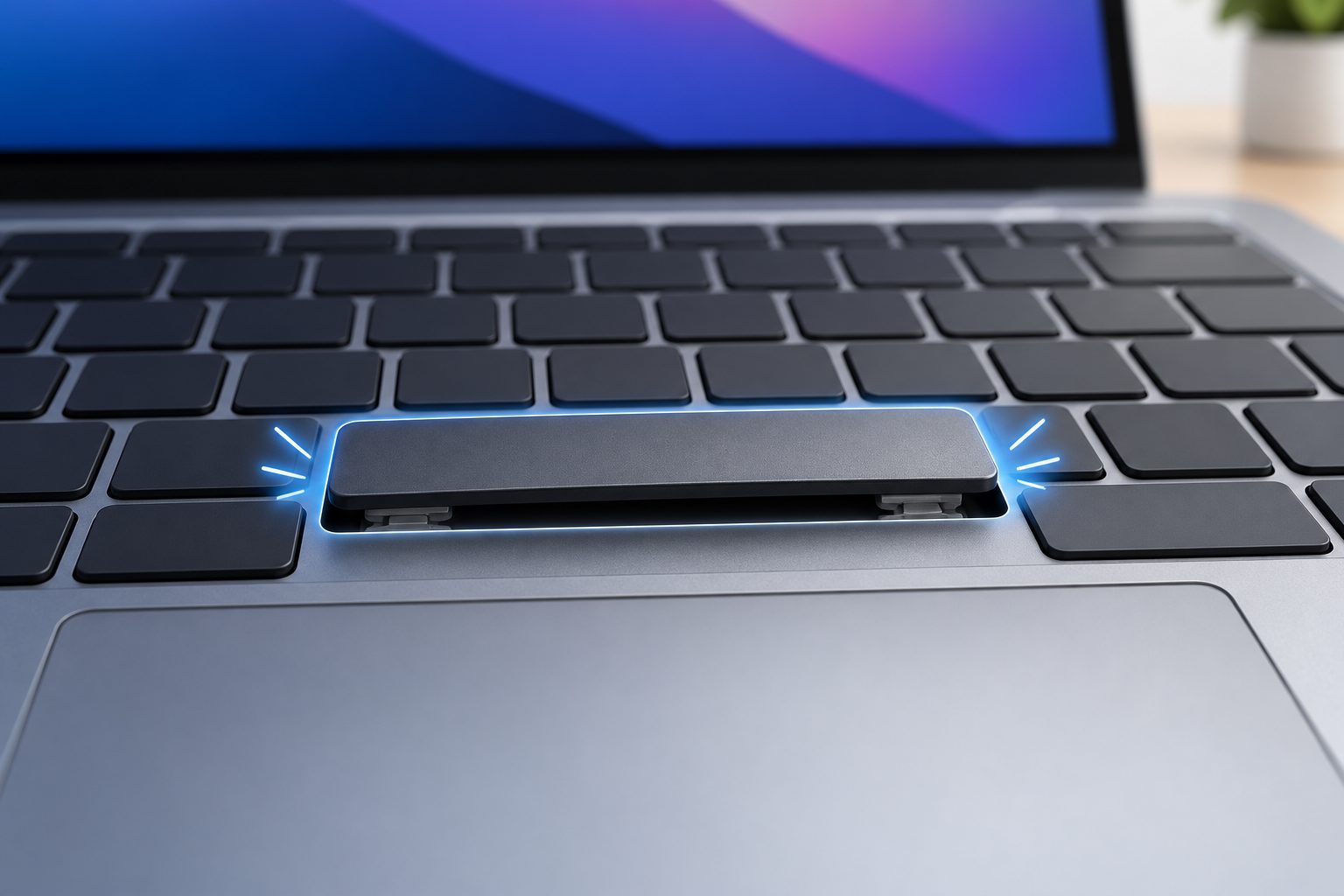
If you are trying to learn how to use spacebar on geometry dash mac, the good news is that the process is usually simple. In Geometry Dash, the spacebar can perform the same basic action as the primary jump key, but the exact response may depend on your version of the game, keyboard settings, and whether you are playing through Steam, a browser, or another compatible setup. Knowing how the key works can make gameplay more comfortable, especially when your hands are positioned away from the mouse or trackpad. This guide explains how to configure and test the spacebar, why it may not respond, how it compares with other controls, and how to use it effectively during difficult levels. You will also learn practical troubleshooting steps, common mistakes, useful practice methods, and answers to frequent questions from Mac players.
What The Spacebar Does In Geometry Dash
The spacebar is commonly used as an alternative input for jumping and controlling movement in Geometry Dash. It is especially useful for players who prefer a large, easy-to-reach key instead of clicking a mouse or tapping a trackpad.
1. The Basic Jump Action
In standard Geometry Dash gameplay, pressing the jump key makes the character jump when the game mode allows it. For the cube, a press usually produces a single jump. The spacebar can provide this same input when the game recognizes it as an active control. Holding the key may create different results depending on the object, mode, or section of the level.
2. Spacebar In Different Game Modes
The spacebar does not always create exactly the same movement in every mode. In cube sections, it normally triggers jumps. In ship, wave, UFO, robot, and related modes, pressing or holding the key controls vertical movement. The game responds to the timing and duration of each press, so learning when to tap and when to hold is essential.
3. Why Mac Players Prefer It
Many Mac players find the spacebar more comfortable because it is centered, large, and easy to press repeatedly. It can also reduce reliance on a trackpad, which may feel less precise during fast gameplay. Players who use an external keyboard may appreciate the consistent travel and tactile feedback of the spacebar.
4. The Difference Between Pressing And Holding
A quick tap and a long press are separate actions in Geometry Dash. Tapping is useful for short jumps, while holding may keep a ship or UFO moving upward for longer. Beginners often press too long because they focus on the obstacle instead of the character’s movement. Practice both actions separately to develop better control.
5. Spacebar As A Secondary Control
Depending on the platform and game configuration, the spacebar may work as a secondary control rather than the only jump key. This means you can switch between the spacebar, mouse button, trackpad, or another supported key. Having more than one option is useful when testing whether a problem comes from the game or the keyboard.
6. Input Timing Matters More Than Key Size
A larger key does not automatically make difficult levels easier. Geometry Dash depends heavily on timing, rhythm, and visual prediction. The spacebar can make your input more comfortable, but success still comes from pressing at the correct moment. Treat the key as a practical control method, not a shortcut around the game’s timing demands.
How To Set Up The Spacebar On A Mac
Most players can begin using the spacebar without complex configuration, but checking the game and Mac settings can prevent unnecessary frustration. Follow the setup process carefully before attempting a difficult level.
1. Launch The Correct Game Version
First, open the version of Geometry Dash you normally play. The available controls can vary between the full desktop game, browser versions, mobile ports, and unofficial adaptations. Make sure the game window is active and accepting keyboard input. If another application has focus, the spacebar may scroll a page or activate a different command instead.
2. Check The Control Settings
Open the game’s settings or controls menu and look for key assignments. Some versions show a jump key, primary action key, or keyboard configuration area. If the spacebar is listed, confirm that it is assigned to the desired action. If the game does not display keyboard settings, test the key in a practice level rather than assuming it is unavailable.
3. Click Inside The Game Window
Before pressing the spacebar, click inside the active game window. This tells macOS which application should receive the keyboard signal. It is a simple step, but it solves many problems caused by an unfocused window. Avoid clicking on menus or other applications immediately before starting a level, because the next spacebar press may be sent somewhere else.
4. Start With Practice Mode
Use Practice Mode to test the spacebar safely. This lets you repeat sections, place checkpoints, and observe how the character responds without worrying about losing a full attempt. Try short taps, longer holds, and repeated presses. Testing several game modes gives you a clearer idea of how the control behaves.
5. Confirm The Keyboard Layout
Mac keyboard layouts can differ based on language and regional settings. The spacebar itself is usually unaffected, but custom keyboard software, remapping tools, or accessibility features may alter its behavior. If other keys also seem unusual, review your keyboard settings and temporarily disable unusual remapping profiles.
6. Test An External Keyboard If Needed
If the built-in keyboard does not respond properly, connect an external keyboard and test the spacebar again. This helps identify whether the problem is related to the game, macOS, or the physical key. A mechanical or wired keyboard may also offer more consistent feedback for rapid inputs during demanding levels.
7. Save Your Preferred Arrangement
Once the spacebar works, keep the same control setup for several practice sessions. Frequently changing between a mouse, trackpad, and keyboard can disrupt muscle memory. Choose the method that feels most comfortable and focus on developing predictable timing with that control.
Why The Spacebar Can Improve Gameplay
Using the spacebar is not required for everyone, but it can offer several practical advantages. The main benefit is consistency, especially when the player’s preferred hand position makes clicking uncomfortable.
1. More Comfortable Hand Position
The spacebar allows your thumb to handle jumping while your fingers remain relaxed near the center of the keyboard. This can feel more natural than repeatedly clicking a mouse or pressing a small key. Comfort becomes increasingly important during long practice sessions, where tension can cause rushed or uneven inputs.
2. Clear Physical Feedback
A keyboard key provides physical movement and resistance that some players find easier to feel than a trackpad click. This feedback can help you recognize whether an input was actually registered. The spacebar’s size also makes it easier to press confidently without searching for a small target.
3. Less Dependence On The Trackpad
Trackpads can be useful for general computer navigation, but some players find them inconsistent for fast rhythm-based gameplay. Accidental cursor movement, pressure differences, or clicking fatigue may affect concentration. The spacebar keeps the action centered on the keyboard and removes the need to coordinate cursor position.
4. Easier Repeated Tapping
Some Geometry Dash sections require several quick inputs in succession. The spacebar can support repeated tapping when your thumb is comfortable and your keyboard has a responsive key mechanism. Repetition should still be controlled, because pressing faster than the level requires can make the character jump too early.
5. A Consistent Practice Habit
Using one primary control helps build muscle memory. When the same finger performs the same action repeatedly, your brain can connect visual cues with physical timing. This is particularly useful when practicing memorization-heavy levels, where reliable input matters as much as knowing the obstacle pattern.
6. Better Control During Long Sessions
A comfortable input method can help reduce hand and wrist strain. Take regular breaks, keep your wrists relaxed, and avoid pressing with excessive force. The spacebar should be used lightly and deliberately. Physical comfort supports concentration, but it should not replace proper posture or rest.
Common Ways To Use The Spacebar
The spacebar becomes easier to master when you connect each input style with a specific gameplay situation. These examples show how small changes in timing can produce very different results.
1. Single Taps For Cube Jumps
In a typical cube section, use a short tap when the character approaches a single obstacle. The goal is to press at the correct visual moment, not as soon as the obstacle appears. Practice watching the character’s position relative to the edge, spike, or platform before pressing.
2. Repeated Taps For Consecutive Obstacles
When several obstacles appear close together, you may need multiple taps. Keep each input separate instead of holding the key continuously. A steady rhythm often works better than frantic pressing, particularly when the level’s objects are synchronized with the music.
3. Holding For Ship Movement
In ship mode, holding the spacebar generally moves the ship upward, while releasing it allows the ship to descend. Use small adjustments rather than long, dramatic holds. The ship’s momentum can continue after an input, so release the key early enough to avoid hitting the ceiling.
4. Controlled Inputs In UFO Sections
UFO gameplay often responds to individual taps rather than a continuous hold. Use brief presses to guide the character between platforms and hazards. If you tap too rapidly, the character may rise too far. If you wait too long, it may fall before the next platform.
5. Timing Changes In Robot Sections
Robot movement can depend on how long the key is held. A quick tap produces a smaller jump, while a longer hold can create a higher jump. Use Practice Mode to compare different hold lengths and identify the amount of space available before the next obstacle.
6. Wave Corrections
Wave sections often require rapid, controlled changes in direction. Pressing and releasing the spacebar at the right rhythm keeps the wave within a narrow path. Avoid holding the key automatically. Instead, focus on short corrections and learn the visual pattern of each slope.
7. Music-Based Practice
Geometry Dash levels often use music as a timing aid. After learning the obstacle layout, listen for repeated beats or transitions that correspond with jumps. The spacebar can then become part of a rhythm rather than a series of isolated reactions. This approach is especially helpful when visual movement becomes overwhelming.
A Simple Spacebar Practice Process
A structured process helps new players improve faster because it separates keyboard testing from level completion. Work through these steps patiently and repeat any stage that feels inconsistent.
1. Open A Familiar Level
Choose a level you already know rather than an unfamiliar challenge. Familiar layouts make it easier to focus on the spacebar response instead of trying to predict every obstacle.
2. Enter Practice Mode
Practice Mode gives you room to test different input styles. Use checkpoints so you can repeat difficult sections without replaying the entire level.
3. Test One Tap
Begin with a single short press. Watch how far the character moves and notice whether the game responds immediately. This establishes your basic timing and confirms that the key is active.
4. Test A Longer Hold
Next, hold the spacebar for a little longer. Compare the movement with the short tap, especially in modes where hold duration affects height or direction.
5. Repeat A Basic Pattern
Choose a simple sequence such as tap, release, tap, release. Repeat it several times until your hand feels relaxed. Consistency is more valuable than speed during this stage.
6. Practice A Difficult Section
Move to a section where you often fail. Focus on the exact moment you need to press, and avoid changing several things at once. If the timing is wrong, adjust the rhythm rather than pressing harder.
7. Review Your Mistake
When you fail, identify whether you pressed too early, too late, too long, or too briefly. This turns each attempt into useful information and prevents random repetition.
8. Return To Normal Mode
After the spacebar feels predictable in Practice Mode, try the same section in normal play. The added pressure may reveal timing problems that were hidden when checkpoints were available.
9. Keep The Same Control Method
Use the spacebar consistently for future sessions if it feels comfortable. Familiarity will gradually reduce the amount of conscious attention needed for each input.
Spacebar Compared With Other Mac Controls
The best control method depends on comfort, keyboard quality, playing style, and personal preference. There is no universal option that guarantees better performance for every Mac player.
1. Spacebar Versus Mouse
A mouse click can be highly responsive and familiar, especially for players who play on a desktop setup. However, repeated clicking may cause fatigue, and the mouse position can distract some players. The spacebar offers a larger target and keeps the hand in a fixed location.
2. Spacebar Versus Trackpad
A trackpad is convenient because it is built into many Mac laptops. However, clicking and tapping can feel less predictable during rapid gameplay. The spacebar usually provides clearer physical feedback, though players who already have strong trackpad control may not notice a major difference.
3. Spacebar Versus Another Keyboard Key
Some players prefer a smaller key because it requires less movement from the hand. A nearby letter key or arrow key can be comfortable, but availability depends on the game version and settings. The spacebar remains attractive because it is easy to locate and press without looking.
4. External Keyboard Versus Built-In Keyboard
An external keyboard can offer a different key feel, lower latency in some setups, and more ergonomic positioning. A built-in Mac keyboard is more portable and convenient. Neither option is automatically superior; the important factor is whether the key registers reliably and feels comfortable.
5. Tapping Versus Holding
Tapping works well for many cube, UFO, and wave inputs, while holding is more important in ship and some robot sections. Players should practice both techniques rather than assuming the spacebar should always be tapped or always held.
6. Comfort Versus Competitive Preference
Some experienced players choose controls based on speed, sound, or tournament habits. Casual players may benefit more from comfort and consistency. If the spacebar allows you to play longer with fewer accidental inputs, it may be the right choice even if another control is popular among advanced players.
Common Spacebar Problems On Mac
When the spacebar does not work, the cause may be simple. Check the most likely problems before changing advanced settings or reinstalling anything.
1. The Game Window Is Not Active
If another application has focus, the spacebar may control that application instead of Geometry Dash. Click directly inside the game window, then test the key again. This is one of the quickest and most common fixes.
2. The Key Is Not Assigned
Some versions may not automatically treat the spacebar as the primary action key. Review the available control options and assign the key if customization is supported. If there is no assignment menu, test the key in a simple level to determine whether the version supports it.
3. A Remapping Tool Is Interfering
Keyboard remapping applications can change how macOS interprets the spacebar. Temporarily disable custom profiles and restart the game. If the key works afterward, adjust the remapping configuration rather than changing the game repeatedly.
4. The Keyboard Has A Physical Fault
Dust, liquid damage, or worn hardware can cause inconsistent inputs. Test the spacebar in a text editor or search field. If it fails outside the game too, the issue is probably physical or system-wide rather than related to Geometry Dash.
5. Another Application Is Capturing Input
Overlays, recording tools, chat applications, and accessibility utilities may intercept keyboard commands. Close unnecessary applications and test again. Keeping the play environment simple can improve both input reliability and game performance.
6. The Game Needs To Be Restarted
After changing controls or connecting a new keyboard, fully close and reopen the game. Some applications do not recognize new input devices or settings until they restart. Save your progress first, then relaunch and test the spacebar.
Best Practices For Better Spacebar Control
Good habits make the spacebar more useful and reduce mistakes caused by tension, poor timing, or inconsistent practice.
1. Press Lightly
There is no advantage to hitting the spacebar with excessive force. A light press is usually faster to repeat and less tiring during long sessions. Concentrate on timing and release control instead of trying to make the keyboard register a stronger signal.
2. Keep Your Hand Relaxed
A tense thumb can create delayed releases and accidental repeated presses. Rest your hand naturally and avoid gripping the keyboard or desk. Relaxation makes small timing adjustments easier, especially during ship and wave sections.
3. Use Headphones If Helpful
Sound can provide a useful rhythm guide in Geometry Dash. Headphones may make beats and effects clearer, but they are optional. If audio distracts you, lower the volume and focus on visual cues until your timing becomes more stable.
4. Practice Short Sections
Repeating an entire level may be inefficient when only one sequence causes problems. Use checkpoints or replay tools to isolate difficult sections. Short, focused practice helps you identify the exact input pattern required.
5. Avoid Random Button Mashing
Pressing the spacebar repeatedly without observing the character can hide the real problem. You may succeed by chance once but fail again immediately. Watch the movement, identify the timing window, and make each press intentional.
6. Take Regular Breaks
Fatigue affects reaction time and judgment. If your inputs become rushed or your hand starts hurting, stop for a while. Returning after a short break often produces better results than continuing through frustration.
Advanced Timing Tips For Experienced Players
Once the basic control feels natural, small refinements can improve consistency in difficult levels. These ideas are most useful after you already know the level layout.
1. Learn Input Windows
Many obstacles allow only a narrow timing window, but that window may still have an early and late safe point. Practice pressing slightly earlier and slightly later to discover the range. Knowing the full window helps you avoid relying on one fragile moment.
2. Use Visual Landmarks
Choose a specific object, edge, decoration, or platform as your cue. Pressing based on a consistent landmark is more reliable than reacting to the character’s general position. Visual landmarks are especially useful when the screen moves quickly or contains heavy decoration.
3. Separate Recognition From Reaction
Advanced players often recognize an upcoming pattern before reacting to it. Learn the sequence first, then connect each known visual cue with a planned spacebar input. This reduces panic and makes difficult passages feel more predictable.
4. Adjust Your Release Timing
In modes affected by hold duration, releasing the key is as important as pressing it. Practice the complete action: press, hold briefly, and release. A well-timed release can prevent overshooting platforms or drifting into hazards.
5. Watch For Input Consistency
If the same press produces different results, investigate the cause. Variable finger pressure is usually less important than variable timing, but hardware issues, frame drops, and distractions can also matter. Consistent conditions make practice more meaningful.
6. Build Rhythm Without Losing Awareness
Music can help establish a regular tempo, but not every obstacle follows a perfect beat. Use the soundtrack as support rather than a replacement for visual judgment. The best players combine rhythm, memory, and direct observation.
Frequently Asked Questions
Can You Use The Spacebar To Jump In Geometry Dash On Mac?
In many desktop versions, the spacebar can function as a jump or action input. The exact behavior depends on the game version and control configuration. Open a practice level, click inside the game window, and test a short press. If nothing happens, check the control settings or try another keyboard.
Why Is My Spacebar Not Working In Geometry Dash?
The game window may not have focus, the key may not be assigned, or another application may be intercepting keyboard input. Test the spacebar in a text editor first. If it works there, restart Geometry Dash, close overlays, and review any available control or keyboard settings.
Is The Spacebar Better Than Clicking A Mouse?
Neither control is automatically better for every player. The spacebar may feel more comfortable, provide clearer physical feedback, and reduce trackpad dependence. A mouse can also be responsive and familiar. Try both methods in Practice Mode and choose the one that gives you more consistent timing.
Does Holding The Spacebar Make You Jump Higher?
The answer depends on the game mode. In some modes, holding affects movement duration or height, while in others a jump behaves more like a fixed action. Test short taps and longer holds in Practice Mode so you can observe the specific behavior of the character you are controlling.
Can A MacBook Keyboard Handle Rapid Spacebar Presses?
A functioning MacBook keyboard should register normal repeated spacebar inputs. However, pressing with excessive force, using a damaged key, or playing with debris underneath can cause inconsistent results. Keep the keyboard clean, press lightly, and test an external keyboard if the behavior remains unreliable.
How Can I Improve My Spacebar Timing?
Start with familiar levels and practice one section at a time. Use visual landmarks, listen for rhythm when helpful, and identify whether each mistake comes from pressing early, late, too long, or too briefly. Consistent repetition with the same control method will gradually improve timing and confidence.
Conclusion
Learning how to use spacebar on geometry dash mac is mainly about confirming that the game recognizes the key, choosing a comfortable setup, and practicing the timing required by each game mode. The spacebar can be a convenient alternative to mouse or trackpad controls, especially when you prefer a large, centered key with clear physical feedback.
Start in Practice Mode, test short taps and longer holds, keep the game window active, and troubleshoot basic keyboard or software issues if the input does not respond. With relaxed hand movement, focused repetition, and consistent timing, the spacebar can become a reliable part of your Geometry Dash setup.